dials
Dials, sliders and a piano keyboard, one line each
dials is designed to bring the joy back into programming, for any age and any level: you write one line and a dial appears, and you turn it and something changes. Dials, sliders, buttons, switches, knobs that click, a piano keyboard, a scope and a level meter go on a scene with nothing to position, nothing to draw and nothing to wire up, and they work with a finger, the mouse and the computer's keys. It is dials.js for pictures.js and pydials for Pyctures, and a control is tied to a setting of a synth in one line.
Free and open source, MIT licence. Made for projects in Circuitry Studio; runs anywhere a browser does.
Try dials in your browser
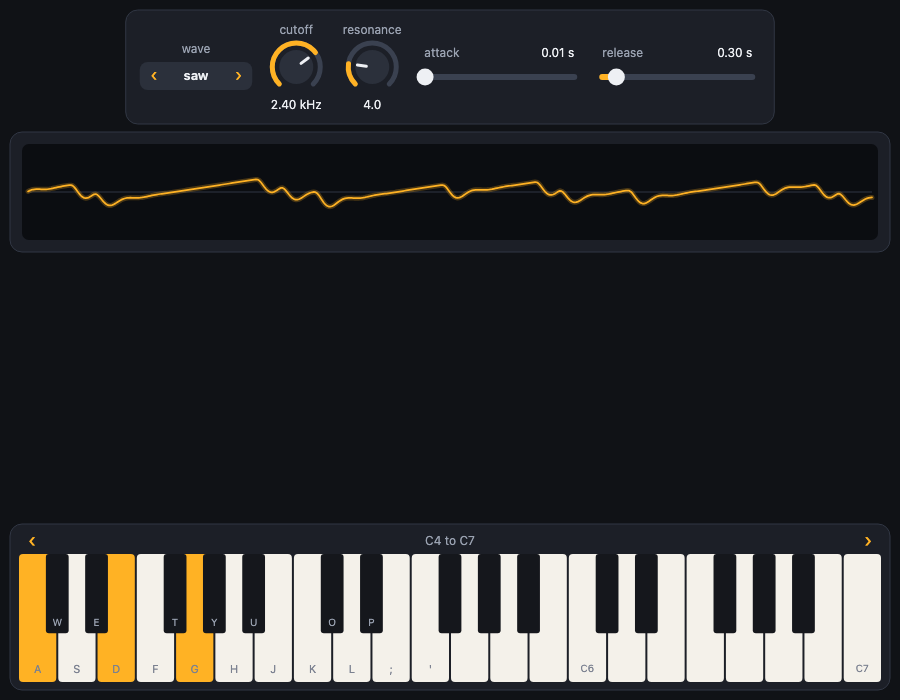
Six lines: a synth, two dials and a slider that are its settings, the wave it is making, and a piano keyboard. Play the keys with the mouse, with fingers, or with A S D F G H J, and turn a dial while a note sounds.
Open CircuitryA browser keeps a page silent until you click or tap it, so the first touch on the scene turns the sound on. Change the code and press Run (or Cmd/Ctrl+Enter).
A control is a number
You say what you want and it appears. A dial or a slider is a number: speed.value is the number it is on now, and in a sum it stands for its number. A button is asked in update: fire.pressed is true once for each press. A toggle is a switch, and a select is one of a list. The controls line themselves up in a row in the order you make them.
const speed = dial("speed", 0, 10, 3)       // from 0 to 10, starting at 3
const size = slider("size", 10, 150, 60)
const fire = button("fire")
const trail = toggle("trail")
const level = select("level", ["easy", "hard"])speed = dial("speed", 0, 10, 3) # from 0 to 10, starting at 3
size = slider("size", 10, 150, 60)
fire = button("fire")
trail = toggle("trail")
level = select("level", ["easy", "hard"])Every control, with its options.
Or a setting of a synth
A control can be tied to a setting of a synth. The dial then is that setting: it takes its range, its unit and where it starts from the synth, and turning it sets it. A scope draws the wave the synth is making, a meter shows how loud it is, and a keyboard plays it: with fingers (several at once), with the mouse, and with the keys A S D F G H J.
const lead = makeSynth("lead")

dial("cutoff", lead, "cutoff")       // the dial takes its range from the synth, and turning it sets it
select("wave", lead, "wave")         // the choices come from the synth too
scope(lead)                          // the wave it is making
meter(lead)                          // how loud it is
keyboard(lead) // piano keys that play it, and light up as it playslead = make_synth("lead")
dial("cutoff", lead, "cutoff") # the dial takes its range from the synth, and turning it sets it
select("wave", lead, "wave") # the choices come from the synth too
scope(lead) # the wave it is making
meter(lead) # how loud it is
keyboard(lead) # piano keys that play it, and light up as it playsA key sounds the moment it is touched and a dial is heard as it turns. Tying a control to a synth.
Your voice, and a real knob
The microphone is a synth to the controls too: its voice is a choice, its pitch is a dial, hearing yourself is a switch, and a scope draws your voice.
const mic = useMicrophone()

select("voice", mic, "voice")          // robot, chipmunk, monster and the rest
dial("pitch", mic, "pitch")
toggle("listen", mic, "listening")     // wear headphones first
scope(mic) // your voice, as a wavemic = use_microphone()
select("voice", mic, "voice") # robot, chipmunk, monster and the rest
dial("pitch", mic, "pitch")
toggle("listen", mic, "listening") # wear headphones first
scope(mic) # your voice, as a waveWith a MIDI controller plugged in, learn ties the next knob you turn to a setting, and the dial on the screen turns with it.
const lead = makeSynth("lead")
const cutoff = dial("cutoff", lead, "cutoff")

lead.learn("cutoff", (value) => { cutoff.value = value }) // the next knob you turn on your controllerlead = make_synth("lead")
dial("cutoff", lead, "cutoff")
lead.learn("cutoff") # the next knob you turn on your controllerThe microphone and MIDI work on a web page of your own and in a scene run with pictures run or pyctures run; in Circuitry's own preview they are not connected yet, and there the controls work by hand. Tying a control to a synth has both.
It lays itself out, or you do
There is nothing to do: controls line up in the order you make them, wrap evenly on a narrow screen, and are a little bigger under a finger. When you want more, a label before some controls is their heading, a group is a plate with a title, and row, column, grid and page arrange what is inside. One line of layout keeps your rows and fits them to the width, or lays the panel out at a set size and scales the whole of it. A rotary is a knob that clicks between a few choices.
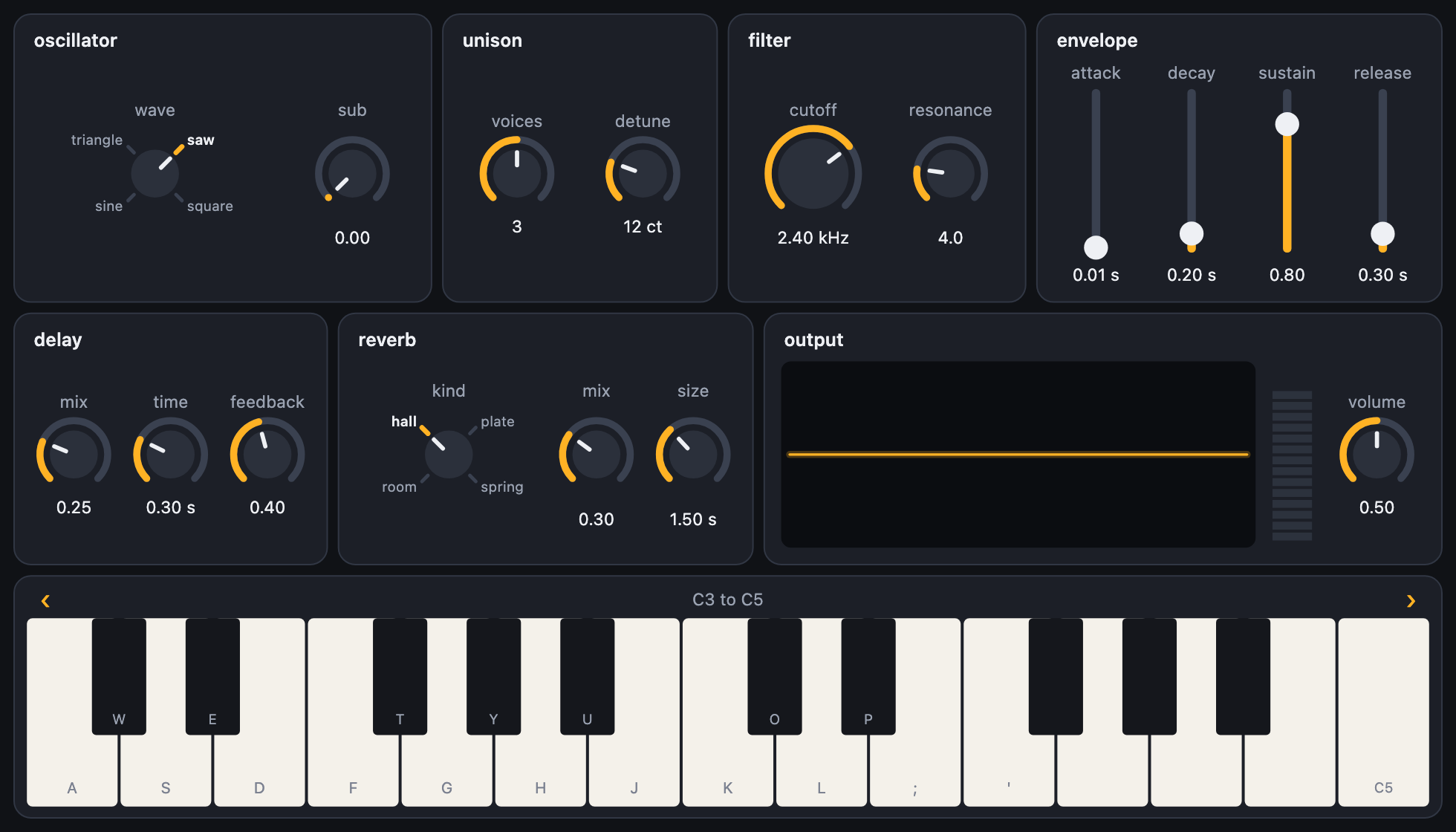
label("oscillator")                 // a label before controls is their heading
rotary("wave", lead, "wave")        // a knob that clicks between choices
dial("width", lead, "width")

group("filter", () => {             // or say it out loud
  dial("cutoff", lead, "cutoff", { size: "large" })
  dial("resonance", lead, "resonance")
})

layout({ wrap: false }) // keep my rows, and fit them to the widthlabel("oscillator") # a label before controls is their heading
rotary("wave", lead, "wave") # a knob that clicks between choices
dial("width", lead, "width")
with group("filter"): # or say it out loud
dial("cutoff", lead, "cutoff", size="large")
dial("resonance", lead, "resonance")
layout(wrap=False) # keep my rows, and fit them to the widthWhen there is more than fits, the plates move under a finger while the keyboard and the scope stay put. Laying out a panel has all of it, with pictures.
A control for anything
A control can be tied to any object, not only a synth. With nothing else to go on it reads and writes the property you name.
const ball = { radius: 40 }
dial("size", ball, "radius", { min: 5, max: 120 })

function draw() {
  background("midnightblue")
  circle(width / 2, height / 2, ball.radius, "gold")
}ball = {"radius": 40}
dial("size", ball, "radius", min=5, max=120)
def draw():
background("midnightblue")
circle(width / 2, height / 2, ball["radius"], "gold")Made for hands
- Drag up or to the right on a dial to turn it up. The drag is the dial's until you let go, wherever the pointer wanders.
- Hold Shift to turn a tenth as far. On a touch screen, pull your finger well away from the dial for a quarter.
- Tap twice to put a dial or slider back where it started.
- Each finger on the keyboard holds its own key, and sliding along plays each key in turn.
- A press on a control is the control's alone: a game that fires on a click does not also fire when a dial is turned.
The controls are drawn on a canvas of their own, laid exactly over the scene's, so they sit on whatever the scene draws, in 2D or 3D, and cost the scene nothing. Layout and touch.
How to get it
In Circuitry Studio there is nothing to install. A JavaScript scene has the names ready, with nothing to import. A Python scene starts with from pyctures import * and from pydials import *. Both run in the preview beside your code, on a computer, an iPad or an iPhone.
Outside Circuitry, dials.js comes with pictures.js and pydials comes with Pyctures: pictures run panel.js or pyctures run panel.py opens your browser on the scene. Neither is published on its own yet, to npm or to PyPI. Getting started says how to use them from a copy of their repositories.